 TextLantern
TextLantern can translate new messages in a channel you enable, so members can follow the same conversation on a computer or phone. Here, we’ll set up English and Japanese in an example #game-night channel, with Spanish available privately on request.
Sign in to TextLantern with a Discord account that has Manage Server. Use the installation guide to add the bot to your server. It needs the specific permissions to read and reply in the channel, not Administrator. Discord’s app guide explains account and server installation.
To read one message privately without Manage Server, use personal translation.
1. Choose a channel and two main languages
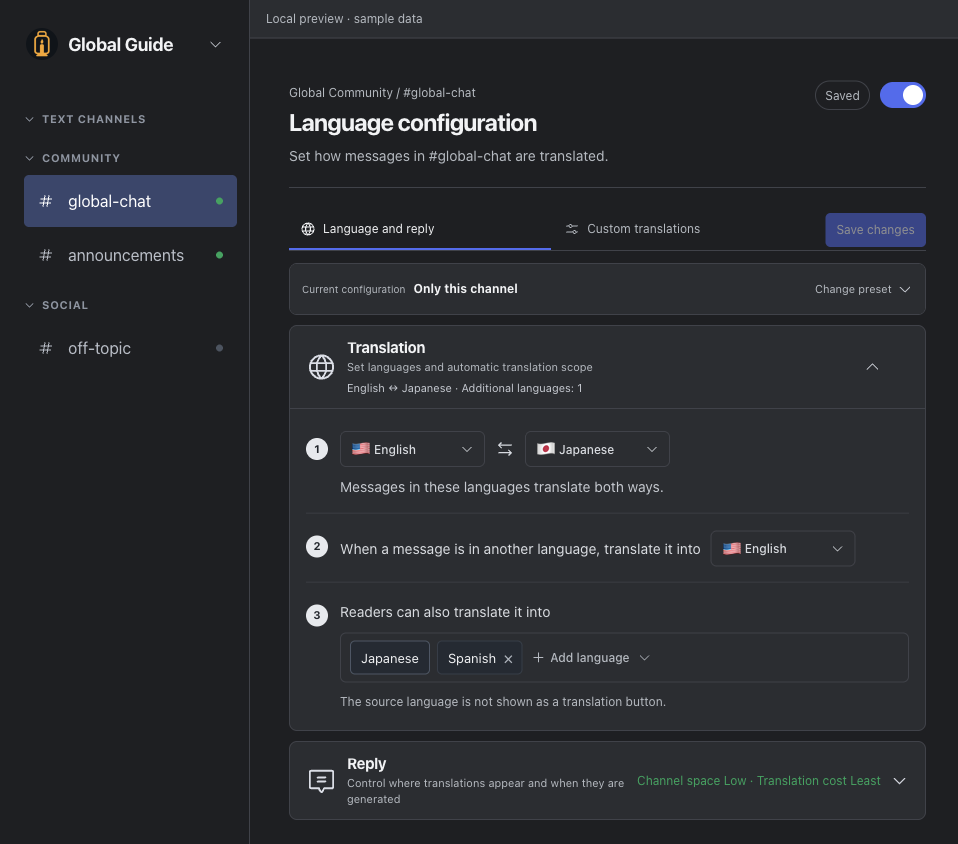
Open your server in TextLantern, select the channel, and choose or create its language and reply settings.
 View full image
Choose English and Japanese as the main languages for #game-night. When either language is recognized, TextLantern translates it into the other. Very short or unclear text may not trigger a translation.
Add Spanish for members who need it. A channel can use up to eight languages, including its two main languages; see the language list for other choices.
2. Decide where the translations go
For the main pair, choose a channel reply to keep translations beside the conversation, or a thread to group them together. People who can access either location can read the translations.
Extra languages also have a private result option, visible only to the reader who requests it. To generate extra translations automatically, choose automatic timing and a shared reply or thread. Choosing a location alone does not turn them on automatically; private results are always on request.
For this channel, use these settings:
| Translation | When | Where |
|---|---|---|
| English ↔ Japanese | On each recognized message | Channel reply, shared |
| Spanish | Reader requests it | Private to that reader |
The illustration above shows both shared options: a channel reply and a thread. Its English/Spanish thread demonstrates shared translations; in our setup, Spanish stays private. If channel replies become hard to follow, you can put the main pair’s translations in a thread instead.
Automatic extra languages can use more characters. The cost guide and usage terms explain how target languages draw on the account’s balance and when nothing is deducted.
3. Save and enable translation
Save the settings, apply them to the channel, and turn translation on. Check that the account has enough characters, then try a conversation from a member account. Bot and webhook messages do not trigger automatic translation.
Check an English–Japanese conversation
This made-up conversation shows what the settings are for. The wording is illustrative, not recorded TextLantern output.
| A member posts | Translation example |
|---|---|
| Can we start at 9 p.m. Japan time on Saturday? | 土曜日の日本時間21時に始められますか? |
| 参加できます。最初の30分だけになります。 | I can join, but only for the first 30 minutes. |
| 開始を日本時間の21時30分に変更します。 | We’re moving the start time to 9:30 p.m. Japan time. |
Include the time zone when planning across countries. These examples keep Japan time explicit; they do not show automatic time-zone conversion. If the time changes, send a new message so everyone can read the update.
In a channel where test messages are welcome:
- Send a clear English sentence and a Japanese sentence. Check that each gets a translation into the other main language.
- Find both replies in your chosen location. Read the dates, times, and participation conditions; the wording need not match the examples.
- Request Spanish with its language control and check that only the requesting reader sees it.
Members on phones read the same replies and threads without a separate setup. Send them the mobile reading steps if they cannot find a translation.
If no translation appears
Start with a complete sentence in one of the main languages. Check that translation is enabled, the intended settings are applied, and the bot can post in the chosen location. For threads, check Send Messages in Threads, Manage Threads, and any channel permission overrides.
A balance or limit message needs an account check; changing permissions will not fix it. If you still cannot find the cause, follow the permission guide or translation troubleshooting.
Privacy in a translated channel
Before enabling a channel, tell members where its translations will appear. For a private translation, a third-party service still receives the source text and target language. TextLantern keeps no permanent message or translation archive; providers may retain records under their own policies. The Privacy Policy explains how the text is handled.
Use the settings in other channels
Once the first channel works, reuse its saved language, reply, or terminology settings elsewhere. Check which channels share a configuration before editing it: they will all receive the changes.
If your account includes terminology settings, start with a few names or community terms. Read the next translations to see whether the wording is consistent before adding a longer list.